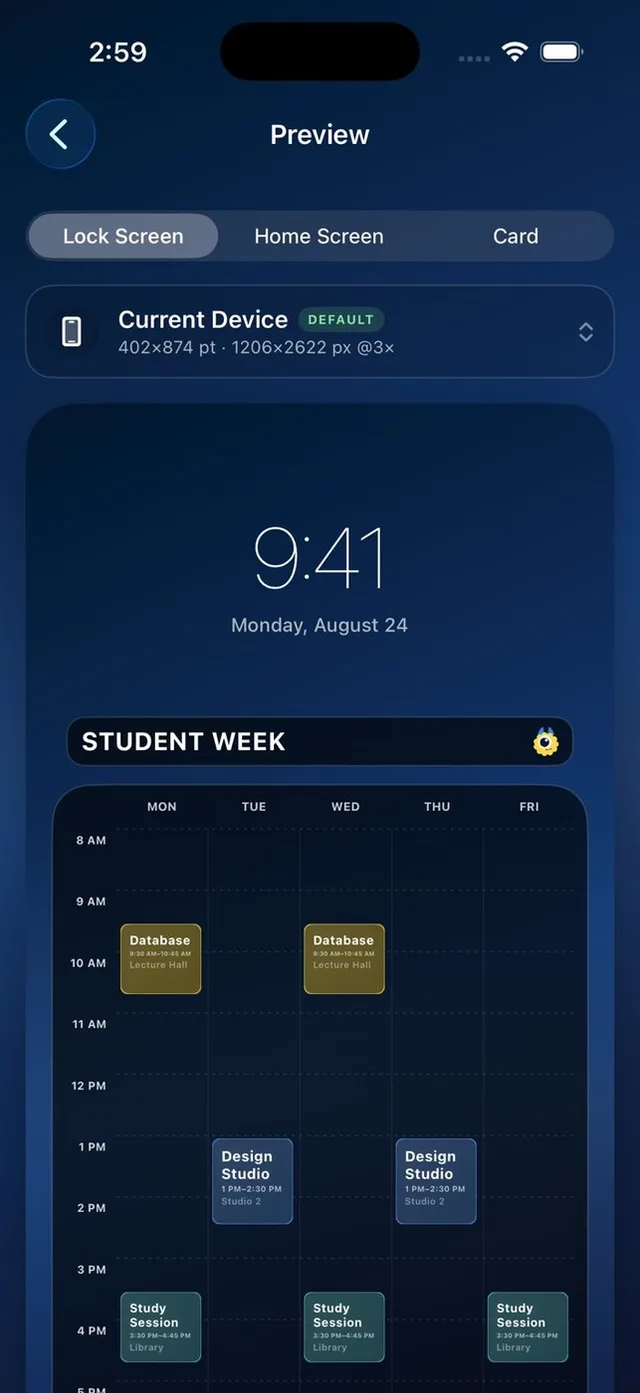
A timetable below the clock.
A schedule can look clear in an editor and become unreadable once the Lock Screen clock sits over it.
Calemon’s Lock Screen preview reserves space for the clock. See how your week fits before exporting the image and making it your wallpaper.

How it works
Build the timetable
Enter the days and times you want to see when you wake your device.
Choose Lock Screen in Preview
Check the timetable beneath the clock area. Use readable colors and a background that does not compete with the text.
Save, set, and review
Export the image, set it as your wallpaper in iOS or iPadOS, and check it with your actual clock and notifications.
A closer look
Preview before committing
Lock Screen, Home Screen and Card are separate export choices. Choose the layout for the place you intend to use it.
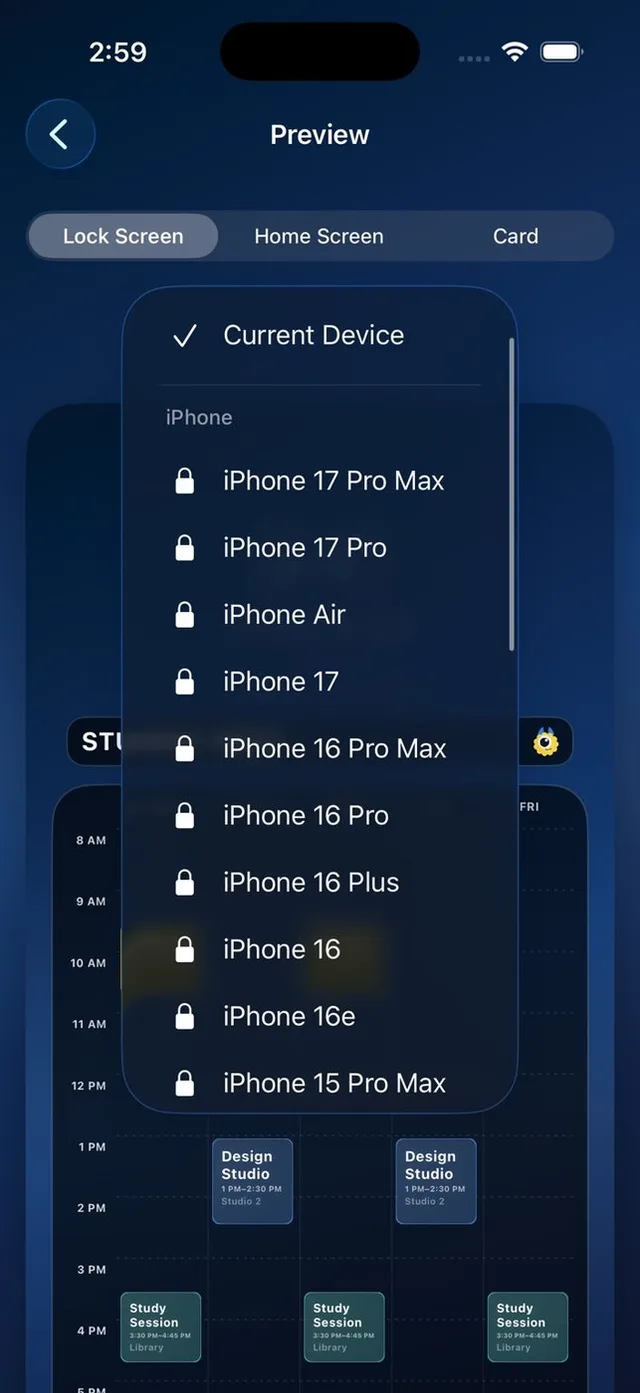
Sized for a screen
Export for the current device, or use the additional device presets available with Calemon Plus.
A few details
Will an edit automatically change my wallpaper?
No. Export the updated schedule and set the new image as your wallpaper.
Can I use a personal photo?
Yes. Calemon supports your own photo backgrounds. A quiet part of the image usually makes timetable text easier to read.
Can I make a Home Screen version instead?
Yes. Home Screen and schedule-card export are available alongside Lock Screen export.